Backup vs Sync explained: best practices for updating and protecting your Docker ecosystem


If you've spent any time following the various guides on this (or any other similar) site, chances are you've got a number of containerized services up and running, including some pretty importatnt databases. Some of you may be happily living life, but others are starting to get restless, feeling tense and listless and just not really sure why...
And then, with a jolt not unlike hearing that critical alert on your RAID array, it hits you. Your docker ecosystem isn't backed up! You're one bad container image update away from losing all your data. Forever!
Or enough of that drama, simply follow some of the ideas below and sleep easy once more. Or don't. Your call.
Basic Concepts
The main idea here is 'duplication of data across multiple locations'. Essentially, we want multiple copies of our data, and we want it in different places. Maybe you've seen or heard the 3-2-1 idea of 3 copies of data, 2 locally, 1 remotely, but this topic is broad and can include things like backup vs sync as well as local vs remote, so let's break it down:
Backups vs Sync'ing files
These terms are sometimes used interchangeably, but while they seem to have similar functions they're actually very different.

Definitions
Backup
An automatic or manual copy of a file, folder or filesystem from one location (source) to another (destination). Each backup is a single point in time and only copies whatever is in the source directory at that given time. It does not update previous backups based on what may or may not have been deleted at source.
File Sync or Synchronization
This is where your data is in two or more places and is kept exactly the same in those places. Sync tasks can run automatically on a timer or on a change detection method, or triggered manually. The terms 'source' and 'destination' can still be used for some methods of sync, but there are circumstances where that could get confusing, so it would be easier to label the locations or machines by name, or with a 'Location A', 'Location B' method.
When would I use Backup?
Backup is used when you want to make sure that you have a file, folder or filesystem from a particular point in time copied fully and you don't want this copy to change. Perhaps you have Folders 1-10 in location A which you want copied to location B. Whether done manually or on a schedule, whenever it's triggered a full copy of Folders 1-10, whether anything has changed in them or not, will be copied to location B. Subsequent backups will not make any changes to previous backups.
This is best utilized when you have a dataset or settings which you need to keep safe, something like a photo album or a database, or a .yml file. If the version at location A is changed or corrupted in such a way that it stops being accessible or no longer works, you can pull a working backup stored in location B.
It is also possible to encrypt backups if additional security is required. Generally it is slower than sync'ing as it will copy the full folder or file system each time, but there are options for 'incremental backup' where the source and target destinations will be scanned, any unchanged data is only referenced in the new backup and simply new or changed data needs to be added.

When would I use Sync?
When you need two exact copies of a particular file system in two different locations at once, such as a file ostensibly stored in location A, but which is modified constantly at location B. One set of users has read access to the file at location A, but no access to the file at location B, which is where a different user or process writes changes to. All changes made at location B must be reflected at location A in real time. After the initial sync task is complete, maintaining sync is faster than doing full backups.
An example of this would be a database of some sort. The filesystems in location A and B are scanned at specified intervals, and the sync tool used will make changes to one or both locations as per the specified requirements. These could be:
- Sync only from location A to location B (changes made in location A will be reflected in location B, including file deletion and modification)
- Sync only from location B to location A (changes made in location B will be reflected in location A, including file deletion and modification)
- Two-way sync between location A and location B (any changes made at any location will be reflected at the other location)

The first two are straightforward, and generally don't lead to any issues. The third option however could sometimes lead to conflicts if the same file is modified at the same time in two different locations. Generally the version which has been modified last will be the one which is accessed by default, however that may not always be what you want. This brings us on to:
Versioning and Retention Period
These are two different but related things.
Versioning
When each new sync'd file or backup is given a version number, and kept up to a maximum number of specified versions (i.e. you want to keep 10 versions of a particular file, and once you reach v.11, v.1 will be deleted to make room for it).
This is helpful if a file is modified or deleted unknowingly or unwittingly; you can easily find the last working version and restore it.
Retention Period (backups only)
When a particular backup or sync is kept for a specified period of time only. This can be anything from minutes to years. You may be aware for instance that companies who retain data about you can only keep it for a certain amount of time. This is a retention period, and you will normally have the option on your backups to specify the length of time.
If you need to keep backups accessible for longer periods of time, but don't want to fill up your storage space more than necessary, this can be done by:
Combining versioning and retention (backups only)
Some backup tools will allow you to combine these two options. For instance if you had a database to backup, you could choose to back it up daily at 12pm. If left unchecked, within a few months you could have 90 versions of the same database, taking up more storage space than is actually necessary for your use case.
Maybe however it's necessary to keep one backup from every day for a maximum of 7 days, one backup from the last day of every week for a maximum 8 weeks, and one backup from the last day of every month, for a maximum 12 months. In all cases, local regulations mean you should only keep any single piece of data for a maximum of 12 months. This can normally be done in settings, something like:
- Backup frequency = daily, max versions kept = 7, retention period = 12 months (on day 8, the backup from day 1 will be deleted, on day 9 the backup from day 2 will be deleted and so on, and if backups are stopped for any reason, any remaining backups will be deleted 12 months after they have been created)
- Backup frequency = weekly, max versions kept = 8, retention period = 12 months (in week 9, the backup from week 1 will be deleted and so on, and if backups are stopped for any reason, any remaining backups will be deleted 12 months after they have been created)
- Backup frequency = monthly, retention period = 12 months (no need to set a version policy here as data will be deleted 12 months after creation)

Most good backup tools will allow you to set multiple versioning and retention period policies on a single backup task.
Locations
Whether backing up or sync'ing, you have the option of where your destination storage is. Some of these options will be local to your source machine and inside your LAN (local area network, meaning connected to your home or office router) such as:
- A NAS (network attached storage device)
- A USB drive attached to your source machine
- Another computer or laptop
Some however may be remote, and only accessible via the internet:
- A NAS or computer in a different physical location
- A cloud service such as Backblaze, Amazon Glacier, Synology C2 etc.
To protect yourself fully but not limit your local access options, you should try to have at least 2 local versions of whatever you need to retain, and 1 remote version. This protects you in the following ways:
- The source machine gets a corrupted file or breaks - you have a local version you can restore from, which is quicker than restoring from a remote version. If your remote version is a paid service which charges you to access your data, this is also a free way to restore what you lost or is broken
- Your local target device breaks or faults - you still have a remote target you can continue to backup to and restore from while you replace your local target device
- An event renders your local source machine and target backup device inaccessible, such as a natural disaster, fire or theft - you have a remote backup you can restore from
- An event renders your remote target backup device inaccessible - you have a local device you can continue to backup to and restore from while you arrange for an alternate remote backup target
Naturally the more local and remote options you give yourself the more redundancy you have built in, but this is what is recommended at a minimum and is suitable for all but the most unlucky home users.
This is a lot to take in already, so here's a picture of a grumpy cat (the original reason the internet was created, obviously).

Finally, let's talk about protecting our docker files
Someone recently asked me how I know it's safe to update a docker container when a new image is released, loosely translated to 'how do I know I'm not going to lose all my data and hard work because a dev put a semicolon in the wrong place?'.
Well, you can read release notes to try and understand what changes were made; you can spin up a test instance first; or (probably the most sure-fire way) is to wait a while (days or weeks) and check to see if anybody else reports a problem with a particular push in the image repo.
And even then, your setup may mean a new image creates a problem unique to you, so to answer, you kinda don't, and this is why we always keep copies of the data we simply cannot afford to lose. Applying this to containers is relatively simple, but can be confusing if some core concepts aren't fully understood, so here we go.
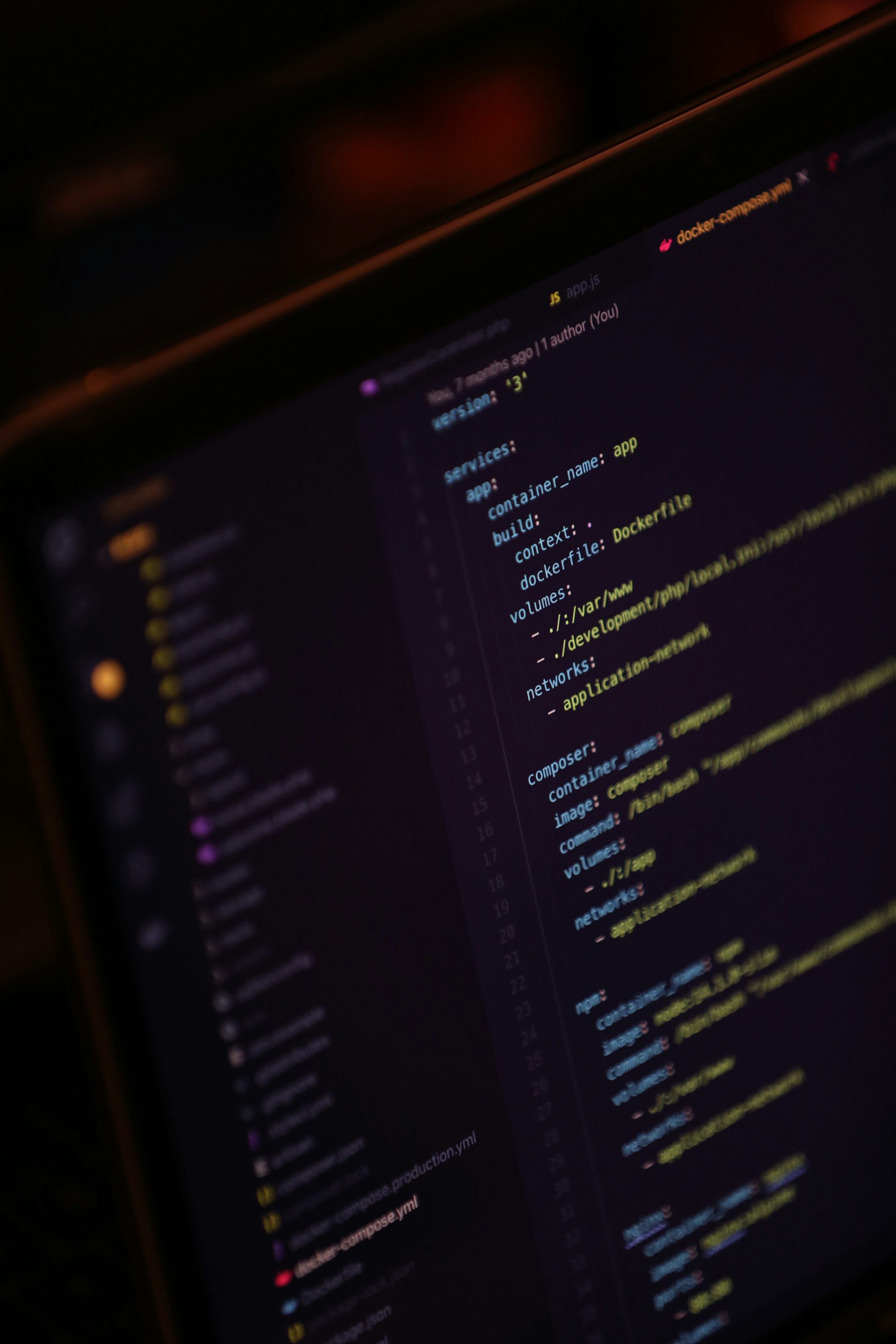
The docker-compose.yml
Regardless of however many of these files you have (one huge file with 50 containers, or 50 individual files with 1 container) this needs to be backed up or sync'd (depending on your own preferences, I'll explain my own methods further down the line). The reason? It's how you recreate your container to a point you know the app or service was working before. This means that even if you need to get a new machine, you can (with very little tweaking) get that same container up and running again from your backed up or sync'd file.
docker run and haven't saved your run commands, or you use a gui such as the one Synology provides, then you can't do this. Use it as your reason to either start using docker-compose or Portainer which will automatically save your container creation commands.Volumes
In most instances a container will have a volume specified on the host so that specific data can be accessed outside of the container. With docker run these are specified with the -v flag, and in a compose file with the volumes: block. These can be split into two categories:
Mapped volumes on the host
This is where you create a directory on your host machine (such as config) and specify that the path to this config directory on your host machine corresponds to a folder inside the container.
Backing up or sync'ing this type of mapped folder is easy as you've created it and know where it is.
Named volumes on the host
This is where the container creates its own volume inside the docker program's file system, and uses that to store data from the container. This is a little bit harder to find, and depending on your OS can differ, but on a Synology NAS for instance it's normally in /volume1/@docker/volumes. You'll notice this directory has your named folders, but also a number of volumes which are defined by number strings. You shouldn't need to worry about these.
Other Data
This can broadly be broken down into two more categories, namely data inside the container which isn't mapped and is lost when the container is removed or recreated (individual containers differ as to how important this data is, so do your research) and data which is accessed or created by a container but lives elsewhere on your machine, such as a video or ebook library (which you can backup or sync yourself if you find it necessary to do so).
To make at least the non-named volume backups easy, I have my docker data all in a root folder in /volume1/docker, and my folder setup follows this convention:
volume1
   └── docker
        ├── stack 1
        |    ├── container 1
        |    |     ├── config
        |    |     └── data
        |    ├── container 2
        |    |     ├── config
        |    |     └── data
        |    └── docker-compose.yml
        ├── stack 2
        |    ├── container 1
        |    |     ├── config
        |    |     └── data
        |    └── docker-compose.yml
        └── stack 3
             ├── container 1
             |     ├── config
             |     └── data
             ├── container 2
             |     ├── config
             |     └── data
             └── docker-compose.yml
This allows me to select either the whole mapped docker file system, a particular stack, a particular container, or a particular folder inside a container for backup, sync or restore.
So what should I sync, and what should I back up, and how?
To be honest I can't answer this for you as it very much depends on your own situation - how much storage space you have on your host machine, what data protection or redundancy is built into your host machine, what types of target destinations you have access to and how much storage is available on them. Maybe what's important to me to keep isn't as important to you.
That doesn't help me
I'm not here to say 'you must do this'. Hopefully the above has given you some things to think about, and you're going to have to find your own way from there. I can however share what I do based on my own system and setup, and maybe that will help steer you in a direction that ends up working for you:
- Sync: I use a sync tool to keep all my critical mapped docker volumes sync'd in real time to a laptop on my LAN (while the laptop is on that is). This is a one-way sync from my host machine to my laptop, meaning anything I delete or change on the laptop is repopulated from the host machine, and the host machine cannot be affected by changes on the laptop. I have versioning turned on, and in most cases I want to keep 10 versions of each file.
- Backup 1: I have a backup of all critical data (whether it's in a container or not) that triggers automatically each night and the target is a USB external HDD connected directly to my host machine. In most cases I have daily versioning of 7 copies, and I have a weekly version kept for 4 weeks.
- Backup 2: This is a duplicate of Backup 1 (i.e. exactly the same folders and versioning and retention polices) where the target is a cloud service I pay for
A note about databases
Databases are notoriously finnicky to backup. This is normally due to host and container permissions, who and what has access to what, who or what has created the data etc. You'll find however that some apps/services which utilize a database have a section in their gui which allows you to backup your whole app or database. Let's take a look at Sonarr, which uses an in-built database called SQlite:

In the gui, you can see there's a category called Backup on the left, and this screen shows five individual backup zips. The oldest is a manual backup from 2021 (I should probably delete that hey) but the four most recent can be seen to be taken 1 week apart. We can intuit that the backup frequency is weekly, and the retention policy is to have a maximum of 4 versions at any one time (not including manual backups).
Further, if we explore the mapped Sonarr folder on our host, we can see these backups:

Here we would set a backup or sync task for this Backups directory and if you ever needed to create a new Sonarr instance on the same or even another machine, you could recreate the container from the Sonarr docker-compose.yml, and then in the gui use the Restore backup button and select one of these files.
Related Articles
 PTS
PTS PTS
PTS PTS
PTS